


Home > Guide > Best Spotify Premium IPA
Safer Alternatives to Spotify IPA: Risks, Safety & Better Options

Considering a Spotify IPA for extra features? While tempting, unofficial apps carry serious risks—including security threats, privacy leaks, account bans, and system instability.
Before you install, it's crucial to weigh these drawbacks. This guide breaks down what a Spotify IPA actually is, evaluates its safety, and introduces reliable and safer alternatives, such as Spotify Premium, NoteCable Spotify Music Converter, and online converters, so you can enjoy your music risk-free.
- What Is Spotify IPA? Is Spotify IPA Safe?
- Safer Alternative 1: NoteCable Spotify Music Converter
- Safer Alternative 2: All-In-One Music Downloader
- Safer Alternative 3: Spotify Official Premium Plan
- Safer Alternative 4: Online SpotMate Spotify Converter
- Spotify IPA vs. Safer Alternatives: Which Should You Choose?
What Is Spotify IPA? Is Spotify IPA Safe?
A Spotify IPA is an unofficial iOS app package customized by third-party developers. These unofficial files bypass standard restrictions to unlock features like ad-free listening and unlimited skips without a Spotify Premium subscription.
Unverified by Apple, Spotify IPAs pose severe security and privacy risks, including potential malware. Users also face frequent certificate revocations, app instability, and potential account bans for violating Spotify's terms.
Ultimately, the temporary perks of a Spotify IPA are rarely worth these long-term security and account risks. To help you enjoy ad-free music risk-free, below are the most reliable and safe alternatives to consider.
👍 If you're concerned about the risks of IPA installation, try a safer Spotify downloader that allows you to enjoy all the premium features of Spotify:
Safer Alternative 1: NoteCable Spotify Music Converter
NoteCable Spotify Downloader lets users keep and enjoy Spotify music offline with a Free account without worrying about ads. It supports downloading Spotify songs, playlists, albums, podcasts, and audiobooks in MP3, AAC, WAV, FLAC, AIFF, and ALAC formats with original audio quality, while preserving ID3 tags and lyrics. Spotify music is converted into real local audio files; users can continue listening even after canceling Spotify Premium, changing accounts, or switching devices. The downloaded music can be transferred to iPhone, iPad, Android phones, MP3 players, USB drives, Apple Watch, car systems, DJ software, and more for permanent offline playback. NoteCable is designed to be beginner-friendly, with simple installation and consistent technical support, making it a more stable and reliable way to keep Spotify music available across multiple devices.
NoteCable Spotify Music Downloader
 How to Use NoteCable Spotify Music Downloader?
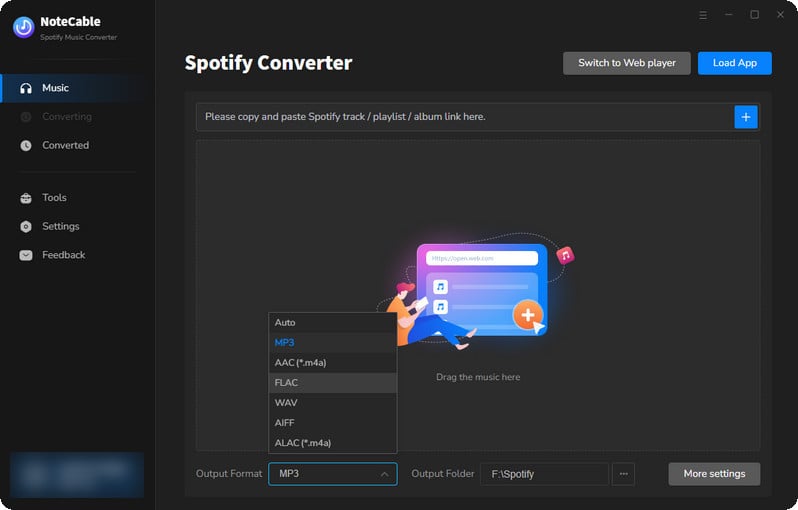
Step 1 Download NoteCable Spotify Music Converter on Windows PC or Mac, then launch the program.
Step 2 Open the built-in Spotify Web Player in NoteCable and log in with a Spotify account. Spotify Free accounts are also supported.
Step 3 Go to 'Settings' and choose the preferred output format, such as MP3, AAC, WAV, FLAC, AIFF, or ALAC. Output quality, ID3 tags, and the download folder can also be customized.
Step 4 Find the Spotify songs, playlists, albums, podcasts, or audiobooks to download. Click 'Add' button, select the tracks, then 'Convert' to save them as local audio files.
Step 5 After conversion, go to 'History' and open the output folder to view the downloaded Spotify music files.
Step 6 Transfer the converted Spotify songs to your iPhone. PC to iPhone: Click Export to iTunes, then sync the songs to iPhone through iTunes. Mac to iPhone: Click Export to Music, then sync the songs to iPhone through the Music app or Finder.
Safer Alternative 2: All-In-One Music Downloader
Sidify All-In-One Music Converter helps users get music from Spotify, Apple Music, Amazon Music, YouTube Music, Tidal, Deezer, SoundCloud, and more for free offline listening. It can download songs, playlists, albums, podcasts, and audiobooks as MP3, AAC, WAV, FLAC, AIFF, or ALAC files, so the music can be kept permanently even after canceling a subscription. Users can enjoy ad-free playback, high audio quality, and offline listening across iPhone, Android, PC, Mac, USB drives, MP3 players, car systems, DJ software, and other devices. Sidify is also beginner-friendly, with a simple download workflow that works like regular desktop software, so there's no need to deal with sideloading, untrustworthy IPA files, or ongoing refreshes.
All-In-One Music Downloader
How to Use All-In-One Music Downloader?
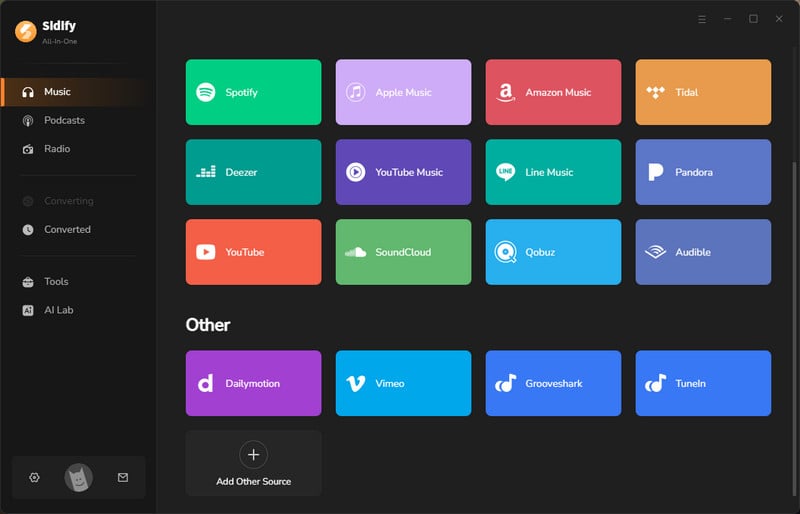
Step 1Install Sidify All-In-One Music Converter on a Windows PC or Mac, then launch the program.
Step 2Choose a supported music platform, such as Spotify, Apple Music, Amazon Music, YouTube Music, Tidal, Deezer, and SoundCloud, then log in with the streaming account.
Step 3 Go to Settings and choose the output format. Output quality, ID3 tags, file name, and output folder can also be customized.
Step 4 Find the songs, playlists, albums, podcasts, or audiobooks to download from the selected platform, then add them to Sidify.
Step 5 Click Convert to download the selected content as local audio files. After conversion, go to History to check the downloaded files.
Step 6 Transfer the downloaded local files to the device or app you want to use for offline playback.
Safer Alternative 3: Spotify Official Premium Plan
The simplest and most reliable way to unlock full Spotify features is by subscribing directly to Spotify Premium. This is the official, 100% safe route that guarantees complete device security, zero risk of account bans, and uninterrupted high-quality Spotify audio.
To help you choose the best option for your budget, here is a quick breakdown of the official Spotify Premium plans:
| Spotify Plan | Price | Users | Ad-Free Listening | Offline Downloads | Unlimited Skips | Best For |
|---|---|---|---|---|---|---|
| Free | $0 | 1 | ❌ | ❌ | ❌ | Casual listening |
| Premium Individual | $12.99/mo | 1 | ✅ | ✅ | ✅ | Individual users |
| Premium Student | $6.99/mo | 1 | ✅ | ✅ | ✅ | Eligible students |
| Premium Duo | $18.99/mo | 2 | ✅ | ✅ | ✅ | Two-person households |
| Premium Family | $21.99/mo | Up to 6 | ✅ | ✅ | ✅ | Families |
Safer Alternative 4: Online SpotMate Spotify Converter
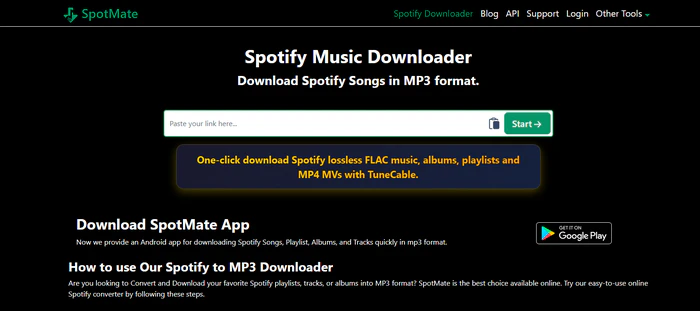
SpotMate is an online Spotify music converter and downloader. By simply pasting a Spotify track, album, or playlist link, it converts the content into downloadable MP3 files. Aside from self-promotion, there are no ads on the site.
| Pros | Cons |
|---|---|
|
- Easy to use. - No installation or Spotify login required. - Free option available. |
- Free users can only process one song at a time. - The free plan cannot download full albums or playlists in one click. - Track details and ID3 tags (such as album art or release year) may not be fully preserved. |
Spotify IPA vs. Safer Alternatives: Which Should You Choose?
| Ways | Safety | Type | Download Audio | Save Metadata | Output Format | Best For |
|---|---|---|---|---|---|---|
| NoteCable Spotify Music Converter | ⭐⭐⭐⭐⭐ | Desktop software | ✅ | ✅ | MP3, AAC, WAV, FLAC, AIFF, ALAC | Keeping Spotify music as local files |
| Sidify All-In-One Music Converter | ⭐⭐⭐⭐⭐ | Desktop software | ✅ | ✅ | MP3, AAC, WAV, FLAC, AIFF, ALAC | Downloading music from multiple platforms |
| Spotify Premium | ⭐⭐⭐⭐⭐ | Official Spotify app | ✅ (Within Spotify) |
✅ | Spotify app-only offline content | Official ad-free and offline listening |
| SpotMate | ⭐⭐⭐ | No installation | ❌ | ❌ | MP3 | Quick online conversions |
| Spotify IPA | ⭐ | IPA | ❌ | ❌ | ❌ | NOT RECOMMEND |
While downloading a customized Spotify IPA might seem like an easy way to get free premium features, it comes with serious drawbacks—including malware risks, privacy concerns, app crashes, and potential account bans.
If you're looking for a safer, reliable alternative to listen offline, NoteCable Spotify Music Converter is a great solution. It allows you to convert SPotify songs, playlists, albums, podcasts, and audiobooks into popular audio formats like MP3, AAC, WAV, FLAC, AIFF, and ALAC. Plus, it preserves ID3 tags so you can easily play your library across any device without relying on sketchy tweaked apps.

