


Home > Spotify Music Tips > Spotify Video to MP3
Download Spotify Video to MP3: Video Podcast & Music Video

Spotify’s way more than just music now—its awesome video lineup makes it a streaming fan favorite! From the iconic The Joe Rogan Experience video podcast to crisp artist music videos, we’re all about these audio-visual picks, not just pure tracks.
Let’s be real: there are tons of times you can’t watch a screen but don’t want to miss that great video content. The fix? Super easy—download Spotify videos and convert them to MP3! You’re probably thinking, "But Spotify doesn’t let you download videos, right?" That’s the catch, and this guide’s here to show you how to download all your favorite Spotify video podcasts and music videos to MP3, no hassle. Let’s dive in!
Part 1: Hottest Spotify MVs and Video Podcasts in 2026 🔥🔥🔥
These official videos and trending tracks are racking up views across playlists like "Best Official Music Videos 2026" and "Top Trending Music 2026":
Top Trending Music Videos (MVs) 🎬 on Spotify in 2026
Top Trending Video Podcasts 🎥 on Spotify in 2026
Part 2: Why Can't I Download Spotify Videos to MP3 Directly?
Spotify prioritizes its ecosystem, so built-in features have clear limits:
Premium offline downloads are app-locked: Files expire if you cancel, can't transfer to other devices, and video podcasts often download audio-only (video not fully saved offline on desktop/mobile). 💡 > > Downloading Spotify videos in MP4 format allows you to enjoy them on any device you prefer.
No native MP3 export: Spotify doesn't allow direct conversion or export to universal formats like MP3 for local files.
Video content restrictions: Many video podcasts stream-only; full video offline is limited or unavailable, especially on Free accounts.
Platform focus: Spotify wants users in-app for ads, recommendations, and monetization.
Part 3: Best Tools for Converting Spotify Videos to MP3
Method 1: NoteCable Spotify Music Converter — Ideal for MVs & Video Podcasts Downloading
Launched as a streamlined solution for Spotify enthusiasts, NoteCable Spotify Music Converter has earned 2026 acclaim for clean performance, 40x download speed, batch download support, and lossless audio quality preservation — a top pick for seamless audio extraction from Spotify music videos, songs, playlists, albums, regular podcasts and, notably, video-enhanced podcast episodes.
What sets NoteCable apart is its integrated Spotify web player: log in directly within the software, no official Spotify desktop app required. This built-in access enables a smoother, more stable workflow, perfect for precise audio extraction from video podcasts without bloating files with unnecessary video data, while batch processing and lightning-fast speeds save time on large collections, and lossless quality preserves every original audio detail.
NoteCable Spotify Music Converter
How to Download Spotify Videos to MP3 with NoteCable?
Step 1Download NoteCable on Your Computer
Download the NoteCable Spotify Converter from the official website and install it on your computer. It will prompt you to log in to your Spotify account on the pop-up Spotify web player.
Step 2Download Music Videos (If Provided)
💡 Note: When downloading videos, please ensure that you have an active Spotify Premium subscription to access this feature.
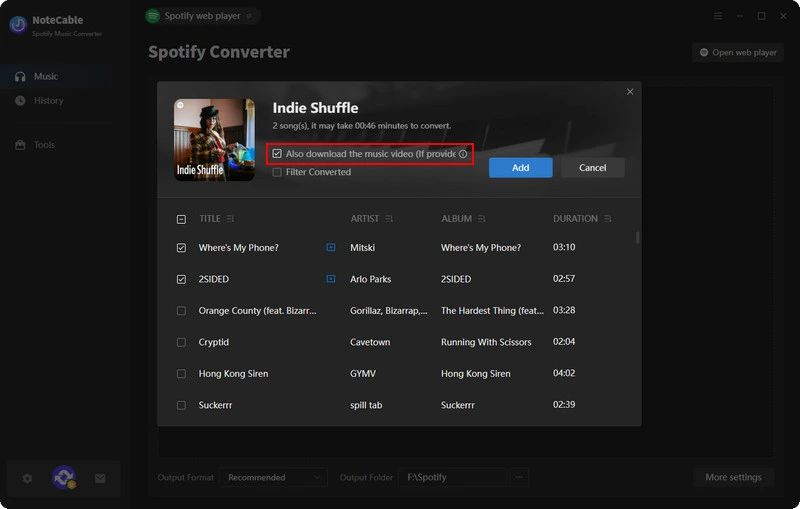
For music videos, beneath the song title in the conversion panel, you'll see an option that says: Also download the music video (if provided). Simply check this option to ensure the music video is included in the download.
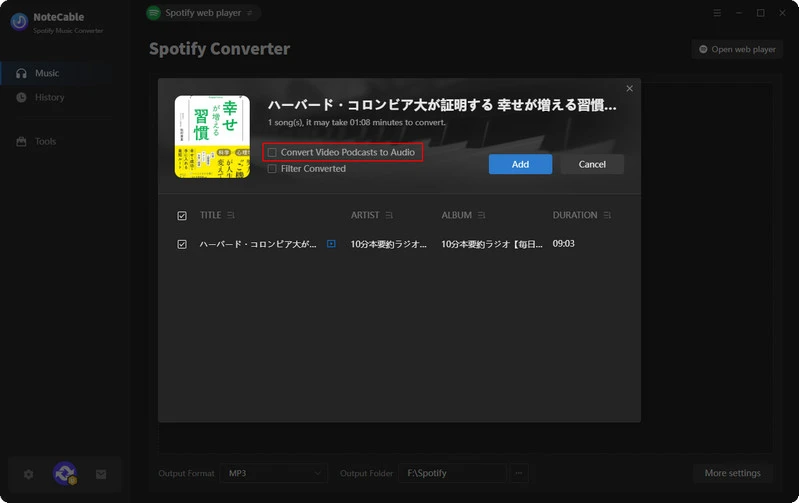
For video podcasts, you’ll see an option beneath the episode title that says: Convert Video Podcast to Audio. Make sure this option is toggle on if you only want the podcast's MP3 audio.
Step 3Choose Audio and Video Formats
Navigate to the Settings section. Here, you can select your preferred audio format (MP3, WAV, AAC, ALAC, AIFF, FLAC), while the video format is set to MP4 by default. You can also choose your desired output location to store the converted files.
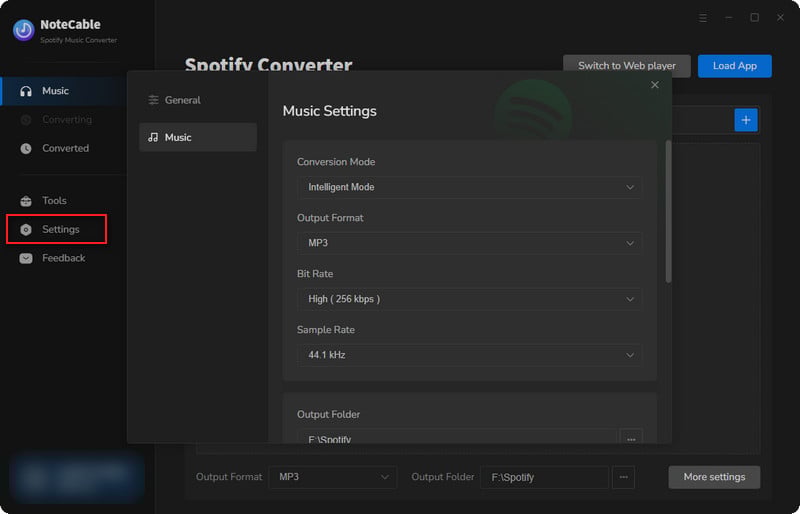
Step 4Start the Conversion
Once you have configured the settings, click on the "Convert" button. The software will begin converting the selected Spotify video to the format you selected.
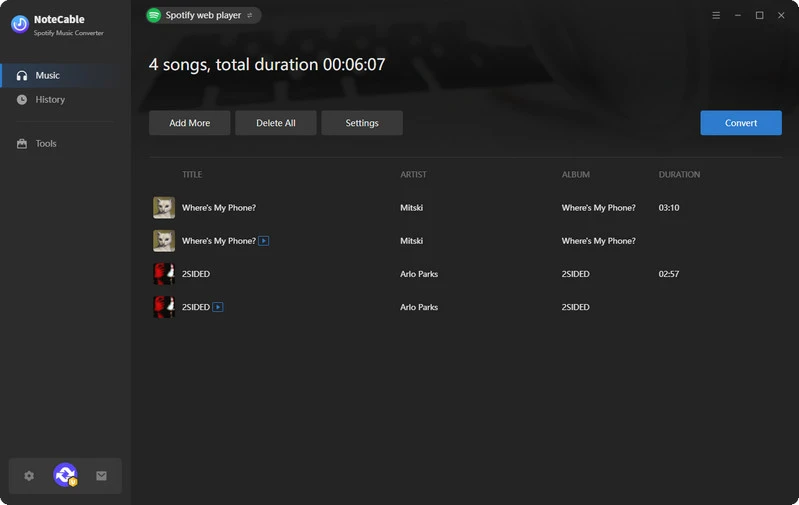
Step 5Access Your Downloaded Files
After the conversion is complete, your MP3 files will be saved in the output folder you specified. Now you can enjoy your favorite Spotify content offline, fully converted and saved on your device.
Method 2: Free Podcast Video Downloader - All-In-One Converter
Sidify All-In-One Music Converter is one of 2026’s most comprehensive streaming audio solutions. A true one-stop tool unlike single-service alternatives, it supports audio download and conversion from over 17 leading platforms, including Spotify, Apple Music, Amazon Music, Tidal, YouTube Music, Soundcloud, and more.
Ideal for Spotify users who enjoy video podcasts and mixed audio-visual content, it features a free Podcast Downloader with no login/registration required, granting instant access to the latest podcast episodes and radio content. You can convert Spotify podcasts to MP3 and save all content as open-format files for permanent offline storage on any device, perfect for cross-platform enthusiasts needing seamless multi-service audio management.
All-In-One Music Converter
How to Download Spotify Video Podcasts to MP3 with All-In-One Converter?
Step 1Download and open the All-In-One Music Converter on your computer.
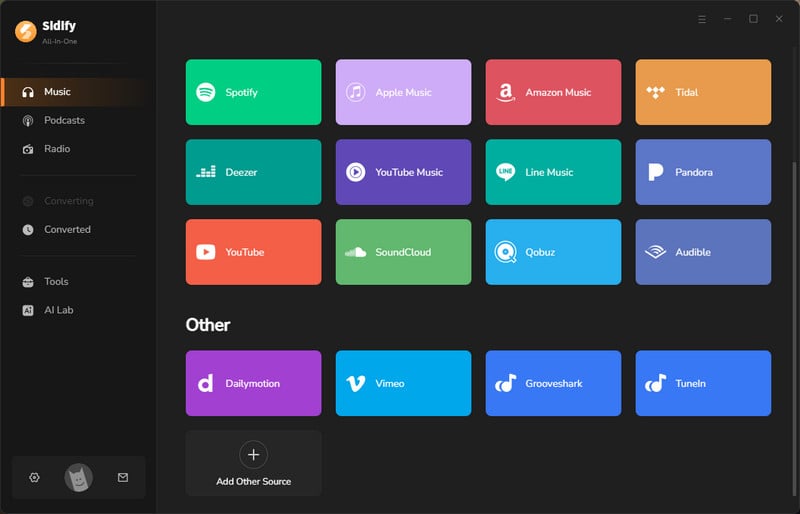
Step 2Before starting your podcast downloads, navigate to the "Settings" menu. Here, you should configure the output folder for your podcasts. By customizing this folder, the program will save the downloaded files to your chosen location.
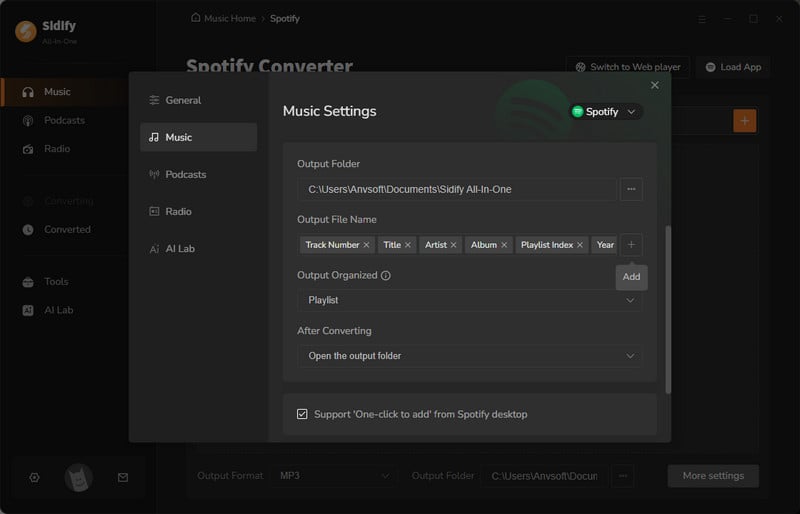
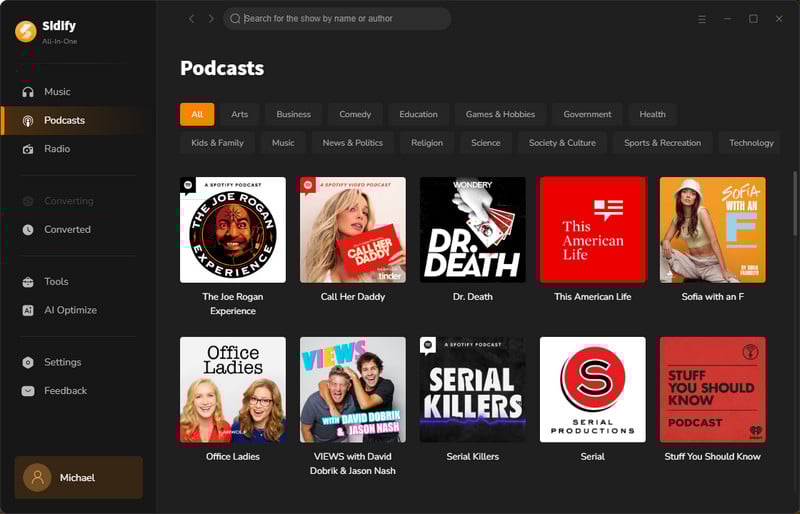
Step 3Next, click on the Podcasts tab in the left panel. You can either select a specific podcaster profile to view all their episodes or search for a podcast show by entering relevant keywords.
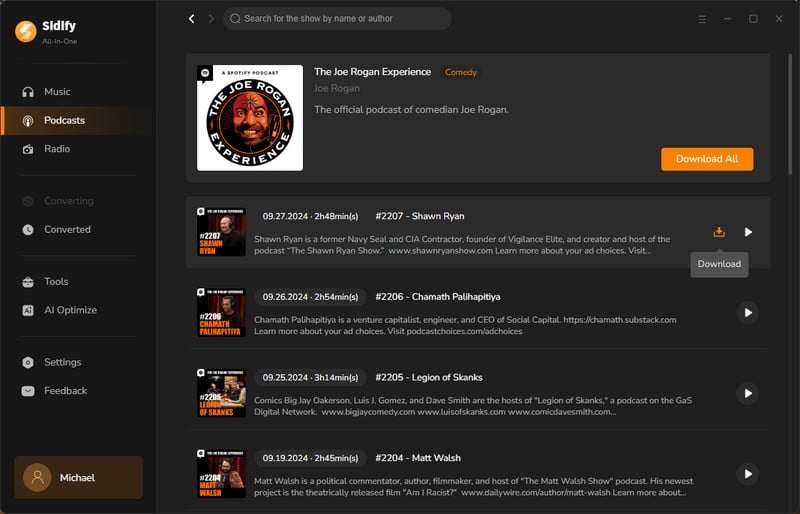
Step 4Locate the episode you wish to download and click the download button next to it. Alternatively, you can select the Download All button to download the entire podcast playlist at once.
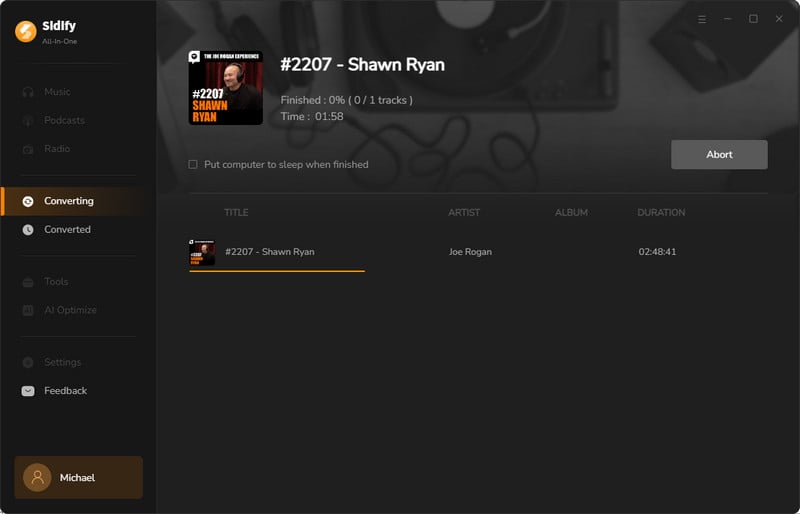
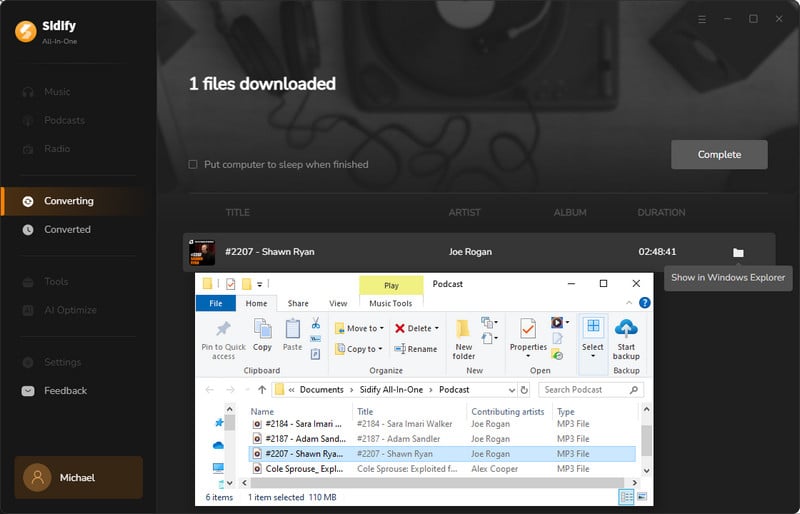
Step 5Go back to the Converting tab, where you’ll see the podcast download in progress, operating at an impressive speed of 40x. This allows you to quickly obtain your favorite podcast audio and have it ready for listening in no time!
Step 6Once the download is done, click the History tab and you’ll find the Podcast downloads on your local drive.
📢Disclaimer: The tools specified in this article are exclusively for personal use and may not be used for commercial purposes or distribution.
Frequently Asked Questions (FAQ)
Q1: Do I need Spotify Premium to convert videos to MP3 with these tools?
Yes. While NoteCable Spotify Converter and Sidify All-In-One Converter work for both free and Premium Spotify users, Spotify Music Videos require a Spotify Premium subscription for access on the platform. Thus, you’ll need Premium to convert this video content to MP3 with the tools.
Q2: Will converting Spotify videos to MP3 lose audio quality?
Not with the tools we recommend. Both convert Spotify video podcasts and music videos directly to 320kbps MP3, the maximum audio quality available from Spotify, so you enjoy lossless-equivalent sound that matches the source exactly — no quality loss during conversion.
Q3: Can I transfer the converted MP3 files to my phone/tablet?
Absolutely! The MP3 files are saved as local files on your Windows/Mac device, so you can transfer them to any device (iPhone, Android, MP3 player, car stereo) via USB, Bluetooth, or cloud storage (Google Drive, OneDrive).
Q4: Which tool is better for music videos vs podcasts?
There’s little difference in music video output between the two tools. For video podcast downloads, Sidify All-In-One Converter is the top pick as it’s completely free. If you’re a cross-platform user who accesses audio from multiple streaming services, Sidify All-In-One Converter is also the more suitable choice for its all-round multi-platform support.
Conclusion
Ditch the screen limits and Spotify app restrictions for good: download and convert your favorite Spotify video podcasts and music videos to MP3 today, and take your go-to Spotify content with you anywhere, anytime. No internet, no screen, just endless high-quality audio from the Spotify video content you love—what’s not to love?

