


Home > Guide > Top Spotify Converter
Top Spotify to 320kbps MP3 Converters: Which Works Best?

This 2026 roundup breaks down the 6 top search-ranked Spotify Converters for a head-to-head comparison, featuring the iconic Sidify lineup (Music Converter, All-In-One Converter, Music Downloader APK), fan-favorite NoteCable Spotify Music Converter, and handy online tools SpotiDown and SpotMate. We’ll weigh core features—audio quality, conversion speed, pricing, pros and cons—to help you quickly find the perfect offline Spotify downloader for your needs.
Part 1. NoteCable Spotify Music Converter
If you’re a Spotify user hunting for a reliable tool to unlock offline music access, NoteCable Spotify Music Converter is an absolute standout top pick. Tailored for both Free and Premium users, this professional tool converts Spotify songs, playlists, albums and podcasts to mainstream formats (MP3, AAC, FLAC, WAV, AIFF, ALAC) at 40x batch speed, and it also enables downloading Spotify music videos and video podcasts to high-quality MP4 format. It preserves 100% lossless audio quality, complete ID3 tags and lyric files for seamless library organization, making it the ideal all-in-one solution for any music lover seeking high-quality, unrestricted offline Spotify audio and video playback.
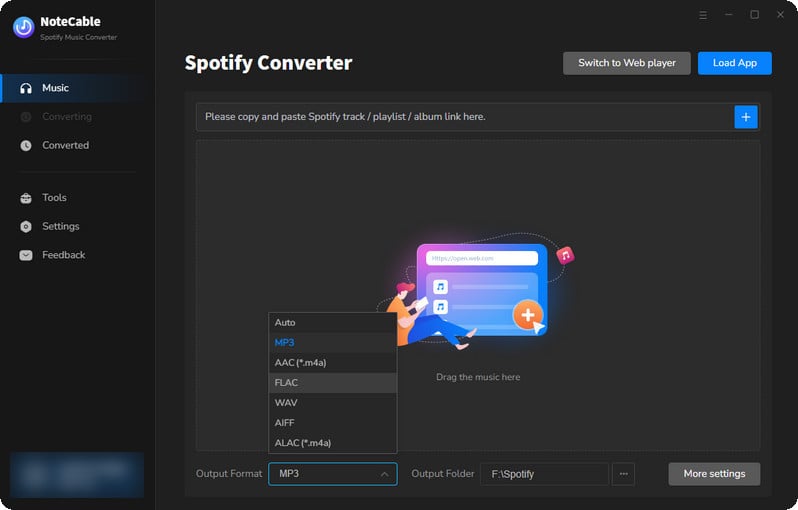
How to Use NoteCable Spotify Music Converter?
Step 1Download the NoteCable Spotify Music Converter from the official website and install it on your computer. Then log in to your Spotify Free/Premium account.
Step 2Import Spotify songs into NoteCable by either copying and pasting the track's link into the designated column or by directly dragging the track to the main interface.
Step 3Go to the Settings and select MP3 as the output format. You can also configure additional settings like bitrate and sample rate according to your preferences.
Step 4Once you have selected your tracks and configured the settings, click on the "Convert" button. The software will begin converting the selected Spotify's tracks into the format you chosen.
Step 5Once the conversion is complete, navigate to the output folder you specified earlier to find your newly converted Spotify files. You can now enjoy your Spotify music free from the limitations of the Spotify app.
Part 2. Sidify Music Converter
With over a decade of audio conversion expertise, Sidify has launched specialized converters for major streaming services including Spotify, Apple Music, YouTube Music, and Tidal. Sidify Music Converter, its first-ever Spotify-focused tool (also the industry’s pioneering solution for Spotify), is tailored exclusively to unlock Spotify audio for flexible offline use. This streamlined converter supports converting Spotify songs, playlists, albums, and podcasts to mainstream formats like MP3/FLAC/AAC at 40x batch speed, preserving 24bit lossless quality, while remaining fully compatible with the latest Spotify versions and Windows/Mac systems for reliable, user-friendly access.
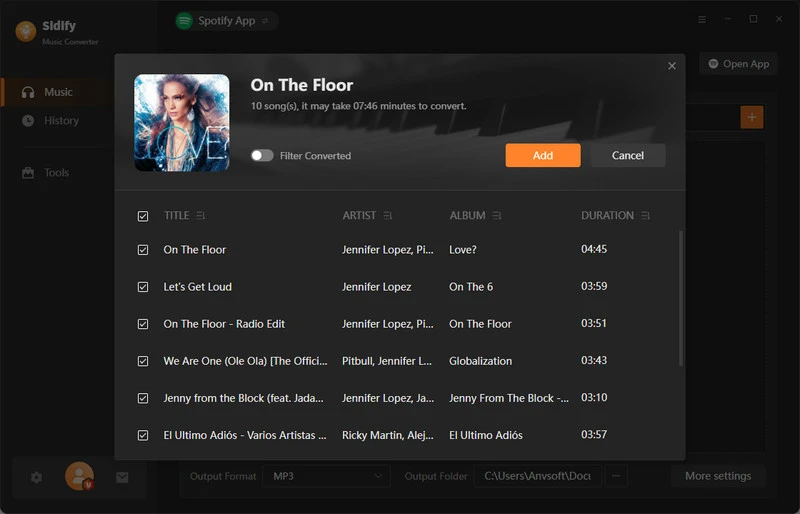
How to Use Sidify Music Converter?
Step 1Launch the Sidify Spotify music converter on your computer.
Step 2Drag and drop your favorite songs or playlists directly from Spotify into Sidify.
Step 3Go to the Settings menu, set up the Spotify music output format as well as the download location.
Step 4Tap the Convert button to start downloading the Spotify music. When the task is 100% complete. Go to the History section and you can view all the Spotify downloads offline.
Part 3. Sidify All-In-One Converter
Sidify All-In-One Streaming Ringtone Downloader is designed to extract audio from 17+ streaming platforms, including Spotify, Apple Music, Amazon Music, Tidal, and YouTube Music. It offers high-speed downloads with built-in ringtone clipping, ensuring audio is captured in lossless quality. Users can easily select precise segments and export ringtones in various popular formats, making it ideal for those seeking quick, high-quality ringtones from their favorite platforms. Perfect for multi-service listeners who want tailored, high-fidelity ringtones without the hassle of switching between apps.
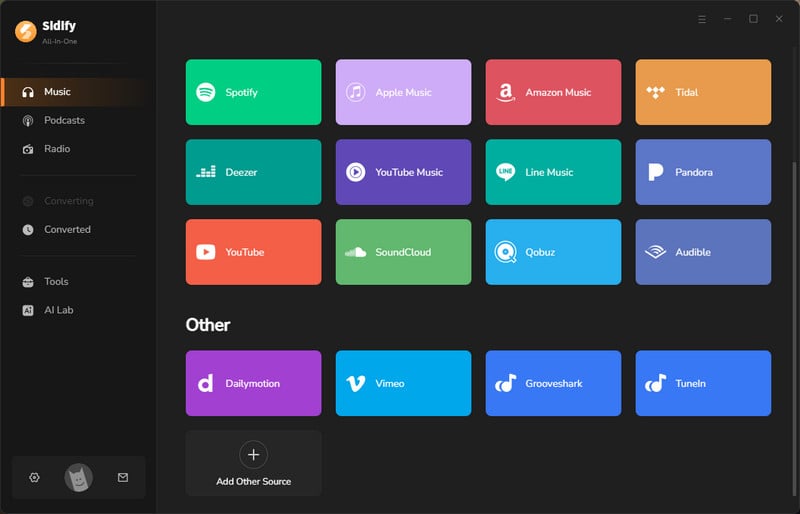
How to Use Sidify All-In-One?
Step 1Download and launch Sidify All-In-One on your computer.
Step 2Select download platforms like Spotify, Apple Music, Amazon Music, Tidal, YouTube Music, Deezer, Pandora, SoundCloud, Qobuz, and more
Step 3Log in to your streaming account, choose the playlists you want to download, and Click to Add. Batch download playlist in one click!
Step 4Go to Settings to adjust output format, quality, metadata, folder and other preferences.
Step 5Click Convert to start downloading. After that, go to History to view the downloaded files.
Part 4. Sidify Music Downloader APK
Sidify Music Downloader APK is a free Android app specifically for downloading music from Spotify. It allows users to directly save songs as 320kbps MP3 files to the Android device and export entire Spotify playlists into local storage with ease. Whether you’re using a free or premium Spotify account, you can enjoy permanent offline listening without restrictions. With a simple and user-friendly interface, Sidify APK makes it easy to keep your favorite tracks accessible anytime, anywhere.
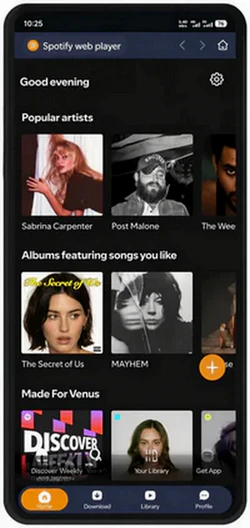
How to Use Sidify Music Downloader APK?
Step 1Download and install Sidify Music Downloader APK on Android device.
Step 2Log in to your Spotify account. Browse or search for the songs or playlists you want to download.
Step 3Tap Click to Add to add tracks to the download list.
Step 4Go to Settings to choose output format, quality, and storage location.
Step 5Click Convert to start downloading music as MP3 format. Once finished, go to History to access the downloaded songs
Part 5. SpotiDown
SpotiDown is an online Spotify music downloader that lets users convert songs, albums, and playlists into local audio files for offline listening. It works by pasting a Spotify link and then downloading the tracks in formats like MP3 or M4A, usually with quality options such as 128kbps or 320kbps depending on the version. The tool is simple to use and often keeps basic metadata like song title and artist. It typically offers a free version with limits such as restricted downloads, lower speed, or ads, while the paid version unlocks higher quality and unlimited batch downloads. However, some tracks may fail due to platform restrictions, and performance can depend on server stability.
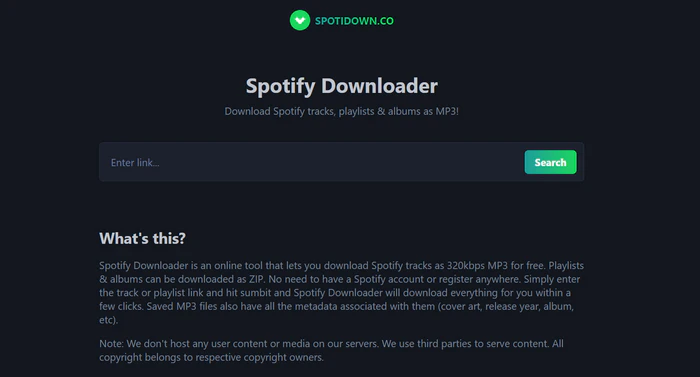
How to Use SpotiDown?
Step 1Copy the Spotify link of the song, album, or playlist you want.
Step 2Paste the link into the Spotidown input box. Then click search to match audio files.
Step 3Click the download button below a track and wait for processing.
Step 4Click Download ZIP to download the entire playlist as a ZIP archive.
Part 6. SpotMate
SpotMate is a web-based Spotify music downloader that allows users to convert songs, albums, and playlists into MP3 files for offline listening. SpotMate works directly in the browser with PWA support for mobile use. It works by simply pasting a Spotify link, with no installation or account required, and supports use across desktop and mobile browsers. One of its key features is playlist downloading with ZIP export, which lets users download an entire playlist or album in a single compressed file. It typically outputs MP3 format and, in premium versions, higher quality options such as 320kbps or even FLAC are available.
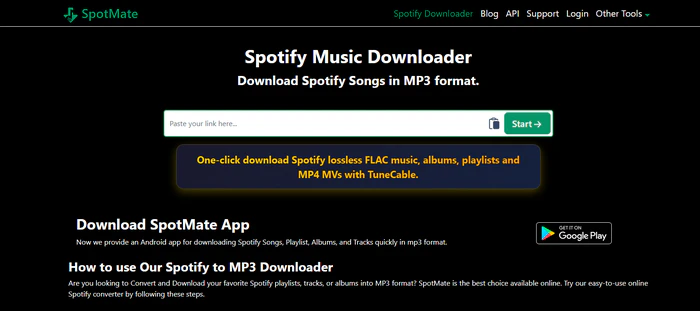
How to Use SpotMate?
Step 1Open Spotify and copy the link of the song, album, or playlist you want to download.
Step 2Go to the SpotMate website and paste the copied link into the input box.
Step 3Click the Start button and wait for the system to process the track.
Step 4Click Download button to download the file to your device.
Part 7. Summary
This article compares top 6 popular Spotify to 320kbps MP3 converters in 2026, including NoteCable, Sidify (Music Converter, All-In-One, and APK), SpotiDown, and SpotMate. It evaluates each tool based on key factors such as audio quality, supported formats, conversion speed, pricing, and overall usability. Desktop software like NoteCable and Sidify offer advanced features such as batch downloads, lossless audio support, and multi-format output, but usually require installation and come with limited free trials. In contrast, online tools like SpotiDown and SpotMate provide easier browser-based access with no installation required, but often have limitations in stability, batch downloading, and audio quality consistency.

