


Home > Apple Music Tips > Apple Music Replay
Apple Music Replay 2026: Find, Share, Download & Fix Issues

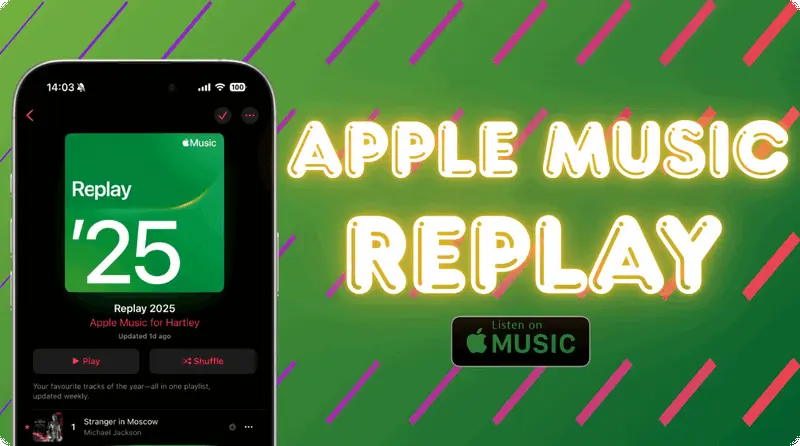
Time to revisit your year in music! The 2025 Apple Music Replay is officially live! This exciting feature allows Apple Music users to reflect on their most-played songs and favorite artists from the past year. For long-time users, discovering your top singles, most listened-to albums, and favorite artists is just a click away. But what if you’re a newcomer or don’t have a rich listening history yet? Don’t worry! This guide is here to help you too! We’ll cut to the chase, showing you exactly how to find Apple Music replay, access complete listening stats, share highlights, and keep your Replay playlist permanently.
🔥 Hot Search: Just switched from another streaming platform to Apple Music? Don’t forget to back up your playlists! With PlaylistGo, transfer your entire music library in seconds. One click is all it takes to move seamlessly between services—keep your favorite tracks and playlists intact.
- Part 1: What Is Apple Music Replay?
- Part 2: What Apple Replay Has: Showdown vs. Others
- Part 3: How to Find & View Apple Music Replay 2026
- Part 4: How to Share Apple Music Replay 2025 Highlights
- Part 5: How to Download Apple Music Replay Playlist for Permanent Backup?
- Part 6: Common Apple Music Replay 2025 Issues & Fixes
- Part 7: FAQs
- Summary
Part 1: What Is Apple Music Replay?
Apple Music Replay 2025 is Apple’s annual personalized recap tool, exclusive to active Apple Music subscribers. It compiles your listening data from December 2024 to November 2025, delivering data-driven insights, top song/artist rankings, and visual highlights to help you relive your musical year.
✨ Baisc Info
✔ Eligibility: You need an active Apple Music subscription (individual, family, or student plan) and sufficient listening data. There’s no official threshold, but regular usage ensures a comprehensive recap.
✔ Early Access: Launched mid-November 2025 (preliminary stats, subject to updates).
✔ Final Access: Early December 2025 (full-year data locked in, with exclusive highlight features).
✔ Availability: Permanently accessible in the Apple Music app or web portal after release.
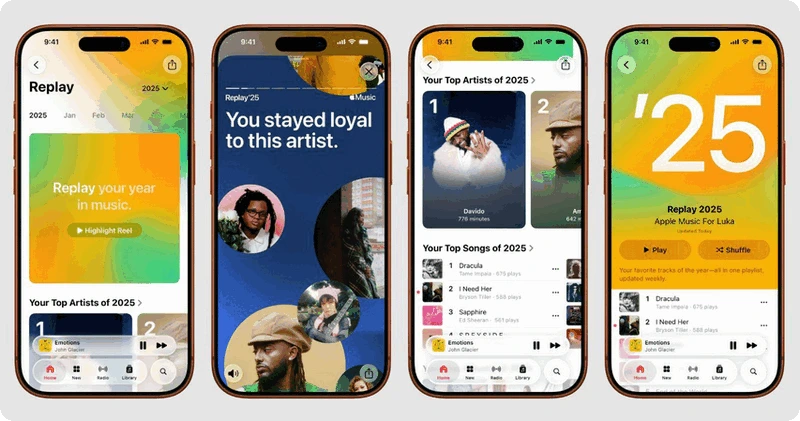
✨ What Will You Get From Apple Music Replay?
Part 2: What Apple Replay Has: Showdown vs. Others
For those wondering how Apple Music Replay 2025 holds up against similar tools, its practical, data-focused features are key differentiators. We’ve pitted it against top rivals’ annual recaps (Spotify Wrapped, YOuTube Music Recap, Deezer Year in Review, Amazon Music My Year) and outlined the differences below:
| Feature | Apple Music Replay |
Spotify Wrapped |
YouTube Music Recap |
Deezer Year in Review |
Amazon Music My Year |
|---|---|---|---|---|---|
| Availability | Year-round (updated weekly) | Early December only | December rollout | December release | December release |
| Shareability | Shareable stats/images | Highly visual, viral-ready stories & cards | Shareable cards & videos | Shareable infographics | Shareable highlights |
| Data Included | Top songs, artists, albums, genres, playtime, milestones | Top songs, artists, genres, minutes, podcasts, moods | Top songs, artists, music videos, total time | Top songs, artists, genres, flow tracks | Top songs, artists, minutes streamed |
| Visual Design | Clean, minimalist web experience | Bold, colorful, animated stories | YouTube-themed visuals with video snippets | Bright, playful graphics | Simple, clean cards |
| Additional Features | Year-playlist auto-updates, milestone badges | Audio aura, listening personality, podcast stats | Top music videos, recap playlist | Musical preferences map, "Soundtrack of your year" playlist | Playlist of top songs |
| Real-time Updates | ✅ Updated weekly | ❌ Annual only | ❌ Annual only | ❌ Annual only | ❌ Annual only |
| Podcast Stats | ❌ Music only | ✅ Extensive podcast stats | ❌ Music only | ✅ Includes podcasts | Limited podcast data |
Part 3: How to Find & View Apple Music Replay 2025
Accessing Apple Music Replay 2025 is straightforward, but the steps vary slightly across devices. Below are clear, step-by-step guides for iPhone/iPad, Android, Mac, and Windows PC. First, confirm these quick prerequisites to avoid issues:
See Apple Music Replay on iPhone, iPad, or Android

Step 1: Open the Apple Music app.
Step 2: Tap the "Home" tab at the bottom.
Step 3: Scroll down to Replay: Your Top Music.
Step 4: Tap "Go back in time". to open your Replay listening stats.
Step 5: Alternative: Search for "Replay 2025" in the search bar and select the official result.
See Apple Music Replay on Web Browser
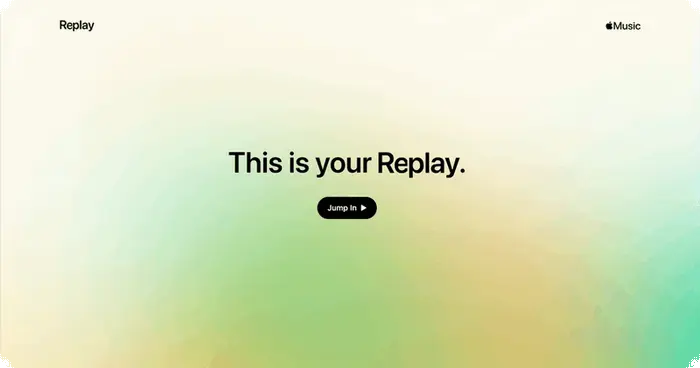
Step 1: Visit replay.music.apple.com.
Step 2: Log in with your Apple ID (linked to your subscription).
Step 3: Click "Enter Replay 2025" to view your stats—ideal for Windows users.
Part 4: How to Share Apple Music Replay 2025 Highlights
You can easily share various parts of your Apple Music Replay 2025, including highlight reels, specific stats, and your full Replay playlist. Detailed instructions for each sharing option are below:
Share Dynamic Highlight Reel
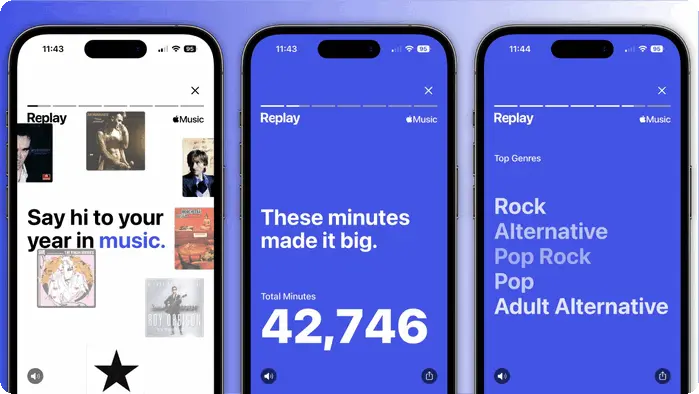
Step 1: In your Replay page, tap the "Share" button (top-right corner).
Step 2: Select "Share Highlight Reel" to generate a 30-second video with album covers, stats, and background music.
Step 3: Choose a platform (Instagram Stories/Reels, TikTok, Messages, WhatsApp) or save to your camera roll.
Step 4: Wait for rendering (10-30 seconds, depending on internet speed) and confirm sharing.
Share Specific Stats (Top Artist/Song/Album/Genres)
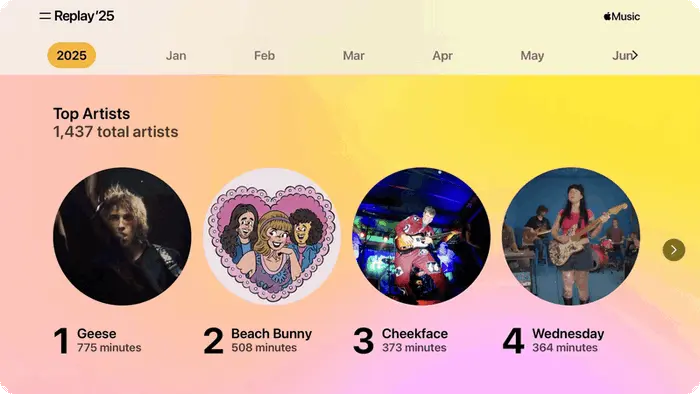
Step 1: Navigate to the stat you want to share (e.g., "Top Artist 2025: Taylor Swift").
Step 2: Tap the "Share" icon next to the stat.
Step 3: Select "Share as Image" (pre-formatted card) or "Share Text" (copy to clipboard).
Step 4: Paste or upload to social platforms like Twitter/X, Facebook, or Instagram.
Part 5: How to Download Apple Music Replay Playlist for Permanent Backup?
Apple Music’s native offline downloads are tied to your subscription, meaning you’ll lose access once it ends—bad news for keeping your precious Replay 2025 playlist long-term. Want to hold onto the tracks that defined your year forever? NoteCable Apple Music Converter is your go-to solution. It lets you save your Replay playlist to any device in common formats, so your 2025 music memories stay with you.
NoteCable Apple Music Converter is specifically designed for users seeking permanent access to their Apple Music collections — perfect for securing your 2025 Replay playlist and saving songs from Apple Music on computer forever.. Unlike common audio downloaders, it lets you select the most suitable output format based on your device requirements, including MP3, WAV, AAC, FLAC, AIFF, and ALAC. Each format is engineered to preserve the highest possible audio quality, with full support for lossless playback. Boasting a 10x faster conversion speed, it ensures efficient processing of your entire Replay playlist without compromising sound integrity, making it the ideal solution for hassle-free, long-term enjoyment across any device.
NoteCable Apple Music Converter
How to Use NoteCable to Download Songs from Apple Music?
Step 1: After installing the NoteCable software, launch the application on your computer. The Apple Music web player should open automatically within the NoteCable interface. Use the built-in browser in NoteCable to go to the Apple Music website and log in with your Apple ID and password.
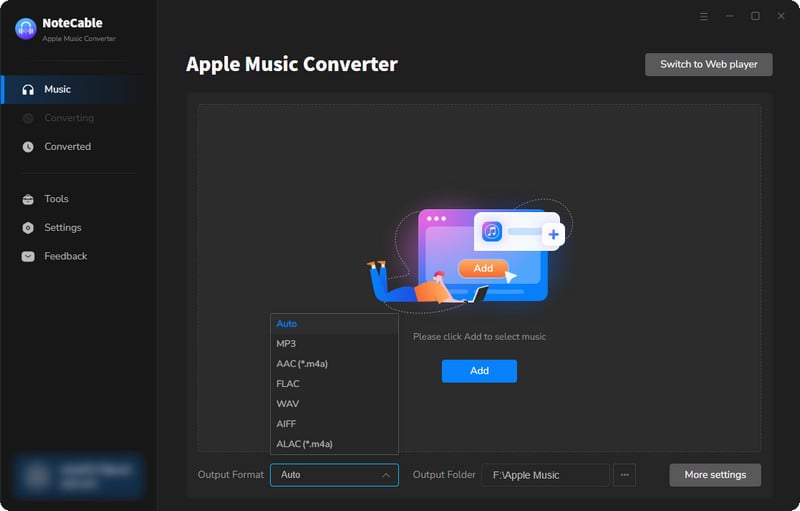
Step 2:Go to Settings, and set the parameter as your preference: output format (MP3/WAV/AAC/ALAC/AIFF/FLAC), bit rate (128~320 kbps), sample rate (44.1~48 kHz).
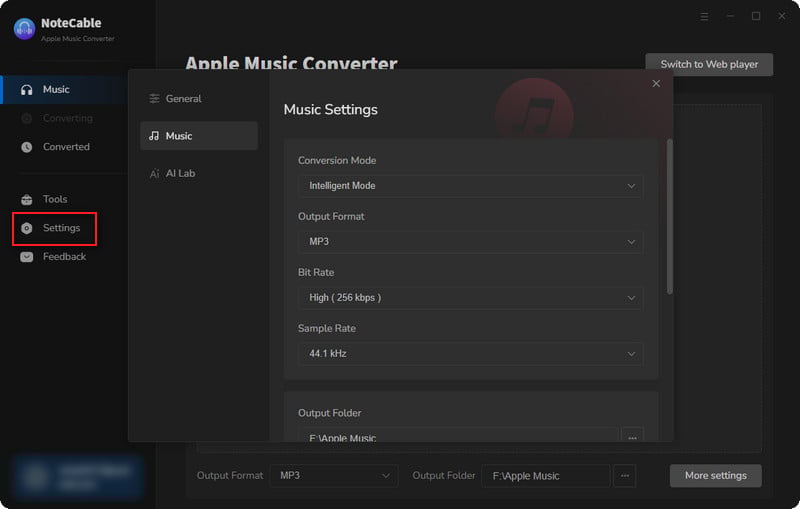
Step 3Navigate to your favorite music or playlist from 2025. You can use Apple Music's search function or browse your library. Once you've found your content, simply drag and drop it directly into NoteCable's conversion panel, or use the "Add" button within the software.
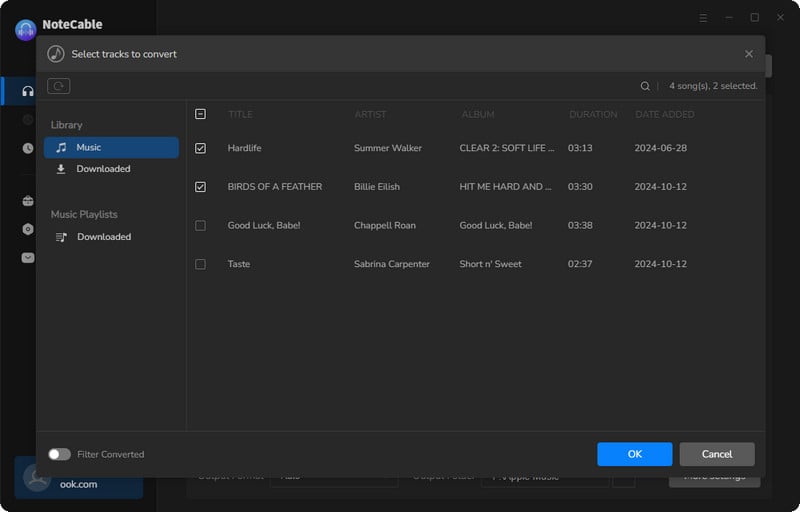
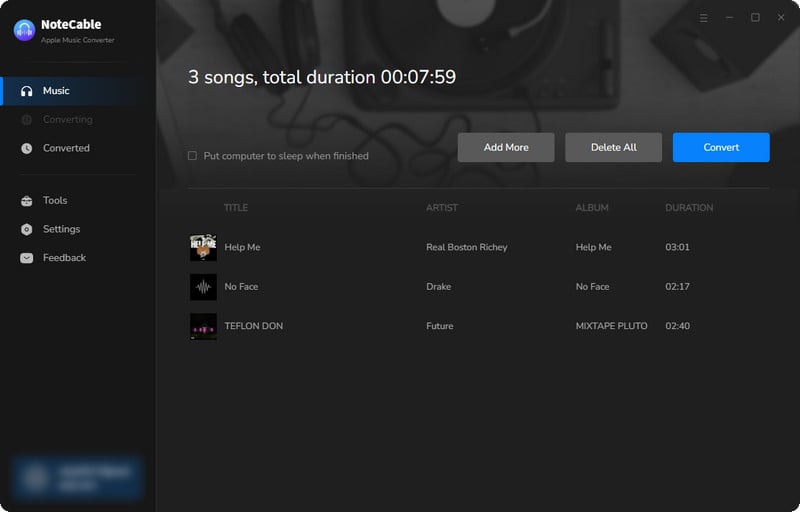
Step 4Once set up, click the "Convert" button. NoteCable will now rapidly process and download the selected music, converting it to your chosen format at high speed (e.g., 10x faster than real-time).
Step 5After the conversion is complete, you can find downloaded files in the output folder you specified. These files are now permanently yours and can be transferred to any device: smartphone, USB drive, or other media players, and played without an Apple Music subscription.
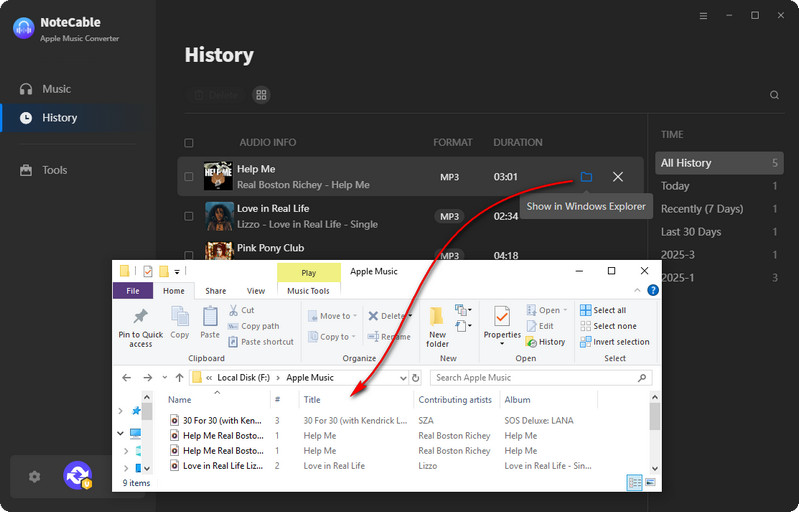
Now that your top-played songs have been successfully saved to your computer, you can move them to your Android phone by using a USB drive. Now, you won’t lose your Apple Music playlists even if your subscription expires.
Part 6: Common Apple Music Replay 2025 Issues & Fixes 🔎
Issue 1: Replay Not Showing Up
✅ Verify subscription status (Settings → [Your Name] → Subscriptions).
✅ Check if enable Listening History.
✅ Update your device OS and Apple Music app.
✅ Clear Apple Music's cache.
✅ Wait 24-48 hours for data sync—Apple needs time to process listening history.
Issue 2: Incorrect or Missing Stats
✅ Sync all devices with the same Apple ID to aggregate listening data.
✅ Pull down to refresh the Replay page (app) or reload the web portal.
✅ Wait for the final December release—early access stats may be incomplete.
Issue 3: Can’t Share Highlights
✅ Use Wi-Fi for video rendering (mobile data may be too slow).
✅ Update the Apple Music app to resolve sharing bugs.
✅ Restart your device to clear software glitches.
Part 7: FAQs
Q1: Is Apple Music Replay 2025 free?
Yes, Apple Music Replay 2025 is completely free for all active Apple Music subscribers. There are no additional fees or premium upgrades required to access your personalized recap.
Q2: Can I view past years’ Replays?
Absolutely. Apple keeps your past Replay recaps accessible permanently once they’re generated. To view Replays from 2024, 2023, or earlier, simply navigate to the Replay section in the Apple Music app or web portal, then scroll down below your 2025 Replay.
Q3: Can I customize my Apple Music Replay playlist?
No, you cannot customize your Apple Music Replay playlist. The playlist and its associated "Replay" highlight story are automatically generated by Apple Music's algorithms based solely on your listening history for that calendar year.
Q4: Does Replay work on Apple Watch or HomePod?
Replay features are partially available on Apple Watch and HomePod. On Apple Watch, you can view basic Replay stats (top artists and songs) and play the Replay playlist through the Apple Music app. On HomePod, simply ask Siri to “play my 2025 Apple Music Replay” to listen. However, advanced features like dynamic highlight reels, sharing options, and detailed listening analysis are only accessible on iPhone, iPad, Android devices, Mac, or the web portal.
Summary
Apple Music Replay 2025 is more than just a yearly recap—it’s a keepsake of your 2025 musical journey. This guide has walked you through every key step: accessing Replay across devices, sharing your favorite highlights, and securing your playlist for the long term. For permanent backup that outlasts your subscription, NoteCable Apple Music Converter stands out as the go-to tool: it lets you save songs from Apple Music on your computer forever, so your year’s favorite tracks stay with you on any device.

